Cascading Changes: Update One Ingredient, Update Every Recipe
Your supplier reports that your coriander powder may now contain celery — milled on a line that also handles celery seed. That coriander is in your satay marinade and your satay spice mix, and the marinade is in your satay sauce. You don't have to open, recalculate and re-save every affected recipe yourself: Eclarion sees which recipes are affected the moment you save the raw material, recalculates everything and applies the change — automatically where allowed, after your review where you want it.
Saving Is Cascading
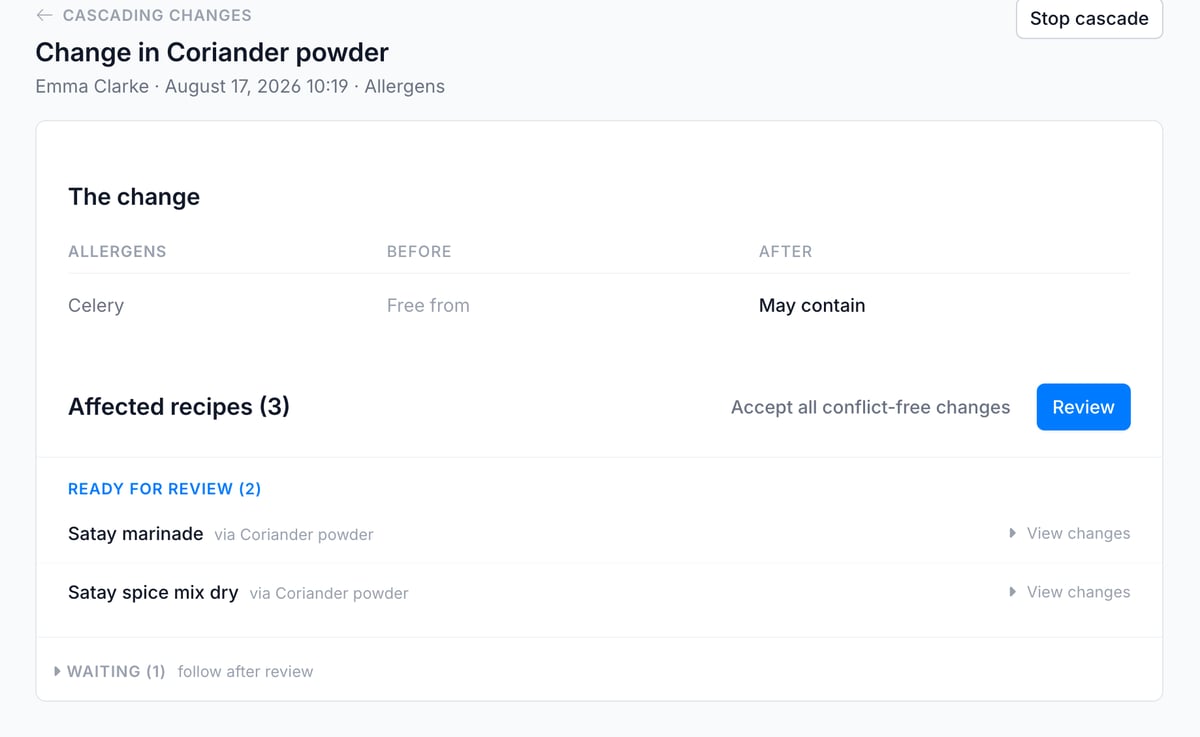
The moment you save an ingredient that other recipes use, Eclarion tells you: "This change cascades to 3 recipes." Click View and you see the change's dossier.

At the top sits the change itself (Celery: Free from becomes May contain), below it every affected recipe with the chain from the changed ingredient to that recipe. A change in a data block cascades the same way to the specifications that use it.
Eclarion works upward from the change: first the satay marinade and the satay spice mix that use the coriander directly, only then the satay sauce that uses the marinade. That way every recipe always calculates with updated numbers. Recipes further up the chain sit under Waiting in the dossier and follow automatically once the rows closer to the change are decided.
Reviewing: Card by Card
Substantive changes, such as allergens or nutritional values, wait for your approval by default. The inbox icon next to your profile counts what is waiting for you; click it and you land in the Cascading changes overview.
The Review button starts the review: one recipe per card, with the chain from the source to this recipe, exactly what changes, and the buttons to decide. Accept applies the change and publishes the recipe. Reject discards the prepared update and leaves the recipe on the values it had before the change. Not sure yet? Skip moves the card to the back and continues with the next one.
If you don't want to click card by card, Accept all conflict-free changes walks the whole queue in one go, in the right order. Conflicts stay behind for individual review.
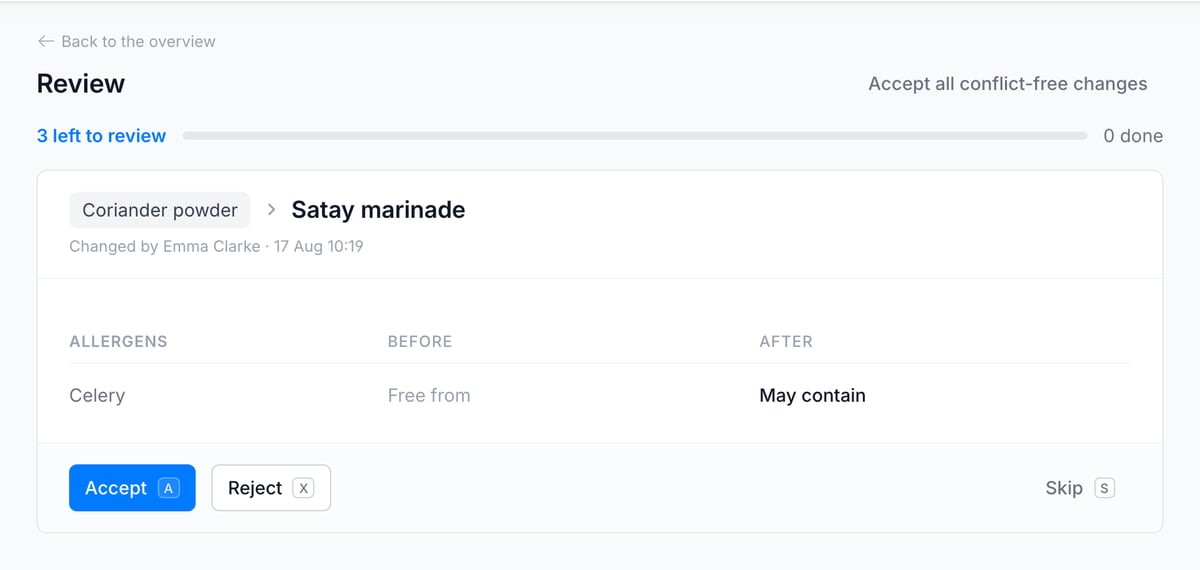
Tip: review with your keyboard: A accepts, X rejects and S skips. With a long queue you're through the whole list in minutes.
If a colleague is working in an affected recipe right now, that row waits until the draft is published or discarded, and continues on its own afterwards. If it's your own draft, you'll see Finish your draft first: publish or discard your draft and the cascade picks the recipe up on its own.
Manual Values and Conflicts
Values you pinned manually with the pen icon stay in place during a cascade. If the recalculation diverges from such a manual value, Eclarion puts it to you explicitly instead of silently overwriting: "Salt (g): manually set to 0.8, calculated value changed from 0.7 to 0.9." Accepting recalculates all values except the manual ones; rejecting changes nothing. These conflicts are never applied automatically, whatever cascade settings you choose.
Data Blocks Cascade the Same Way
Many specifications pull their packaging, shelf life or quality values from a data block: pick the block, click Retrieve data and the section is filled in. From that moment Eclarion tracks per field where each value came from. A grey database icon behind a field means: this field follows the block. Adjust such a field yourself and an amber pen appears: this field differs from the block.
Publish a change to the data block itself and it cascades to every specification that uses the block — exactly like an ingredient. Fields that follow the block receive the new value; fields with the pen stay put — a cascade never overwrites your own adjustment. Want a field to follow along again? Click the pen and the field follows the block once more.
The Cascade Policy: From Reviewing Everything to Fully Automatic
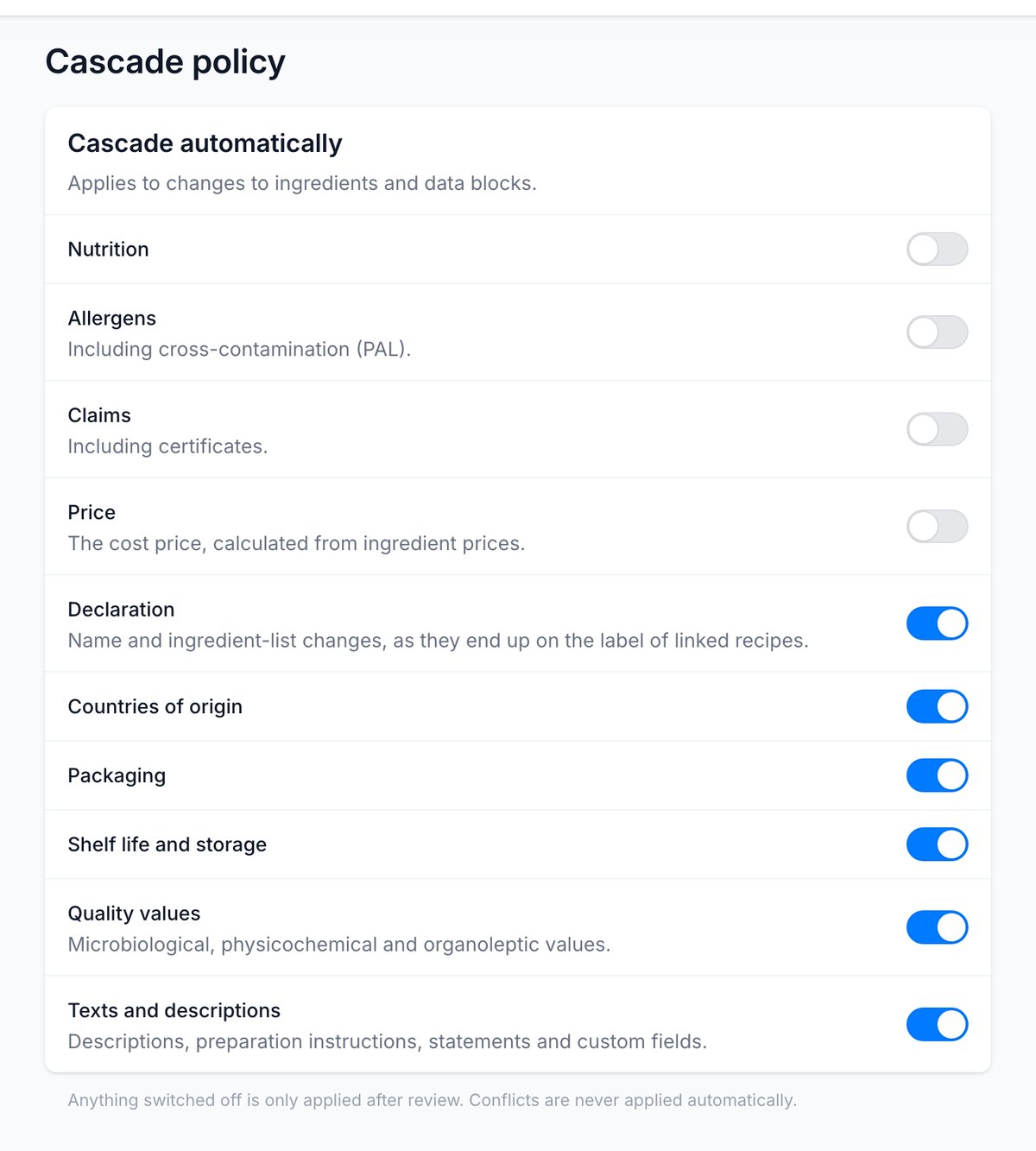
How much you want to review is up to your company. Administrators find the Cascade policy under Settings: ten categories, each set to automatic or review, covering changes to ingredients and data blocks alike.
By default Nutrition, Allergens, Claims and Price wait for your approval. The other six cascade automatically: Declaration (the name and ingredient list as they end up on the label of linked recipes), Countries of origin, Packaging, Shelf life and storage, Quality values and Texts and descriptions.
Switch everything to automatic and cascading becomes invisible: you save an ingredient and every linked recipe is updated moments later. No queue, no clicking. The Allergens category has its own guide: PAL assessment covers allergen states and cross-contamination.
Everything Stays Accountable
Every applied change can be traced back. The overview is the log: what cascaded, what went automatically and who accepted what. In each affected recipe's history the cascade appears as a regular revision, with "cascade from Coriander powder" as its source. When an audit or a customer question comes in, you can always show what changed when, and why.
To stop a running cascade after all, use Stop cascade in the dossier: the remaining recipes will not receive the change, anything already applied stays in place. And if you publish a new change to the same ingredient while a cascade is still open, the new cascade supersedes the old one — you never review outdated numbers.