Building the ingredient declaration
Eclarion builds the ingredient declaration automatically from your bill of materials. Ingredients are sorted from high to low, compound ingredients show their sub-ingredients in brackets, and QUID percentages (Quantitative Ingredient Declaration — the mandatory percentage for ingredients named in the product name) are calculated in compliance with EU 1169/2011.
1. View the ingredient tree
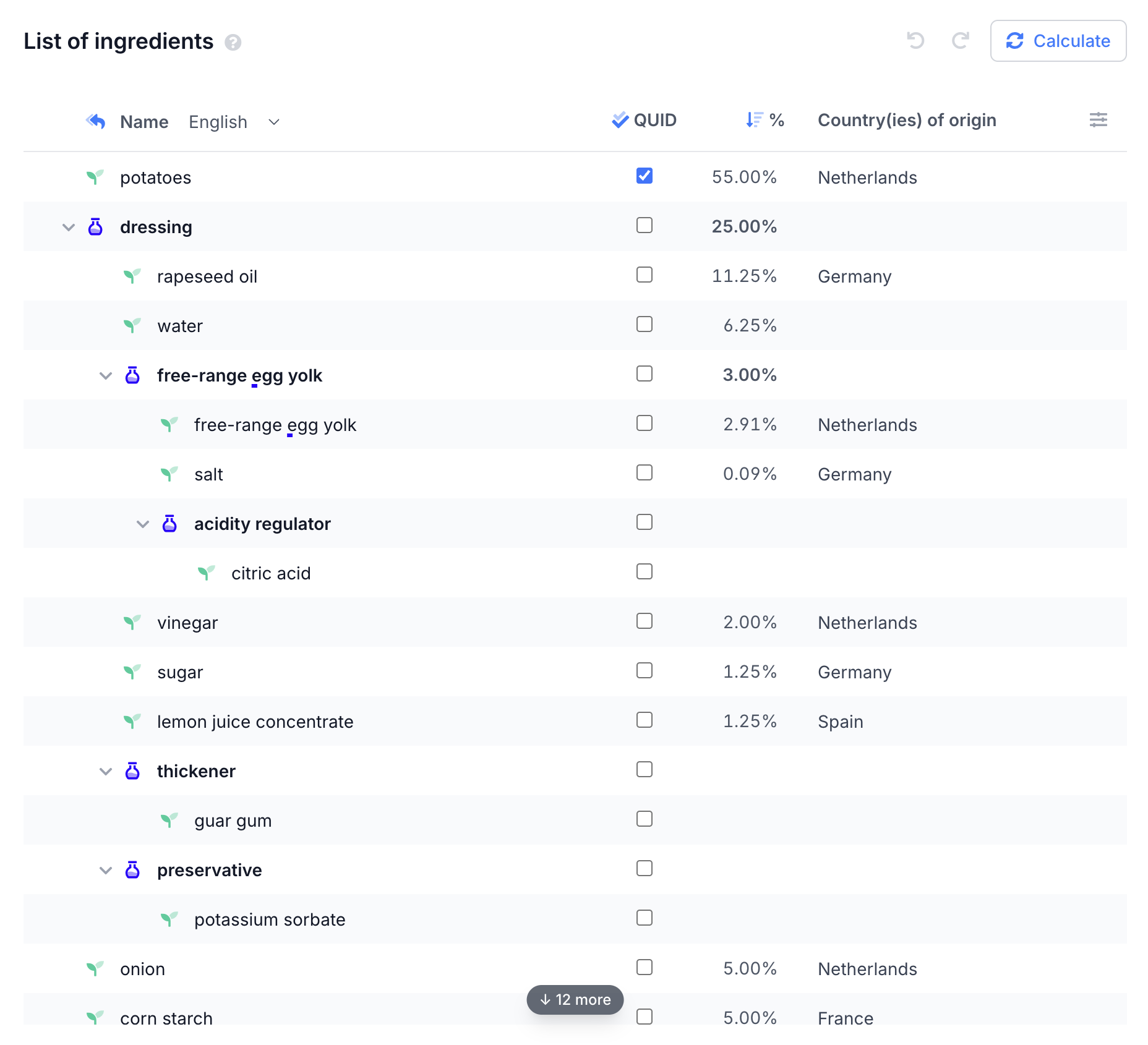
Open your recipe and go to the Ingredient declaration tab. Eclarion shows the full tree structure of your product — including nested ingredients and their percentages.
2. Customise
The declaration is editable. You can:
- Rename ingredients — click a name to adjust the legal name
- QUID on/off — choose per ingredient whether the percentage is visible
- Collapse groups — "herbs and spices" don't always need to be listed individually
- Group additives — Eclarion automatically groups additives under their category (thickener, preservative)
3. Declaration text
At the bottom you'll find the generated declaration text — ready for your label. Eclarion automatically recognises allergens and underlines them. Click an underlined word to make it bold. Want to mark a word yourself? Select it and click Mark allergen.
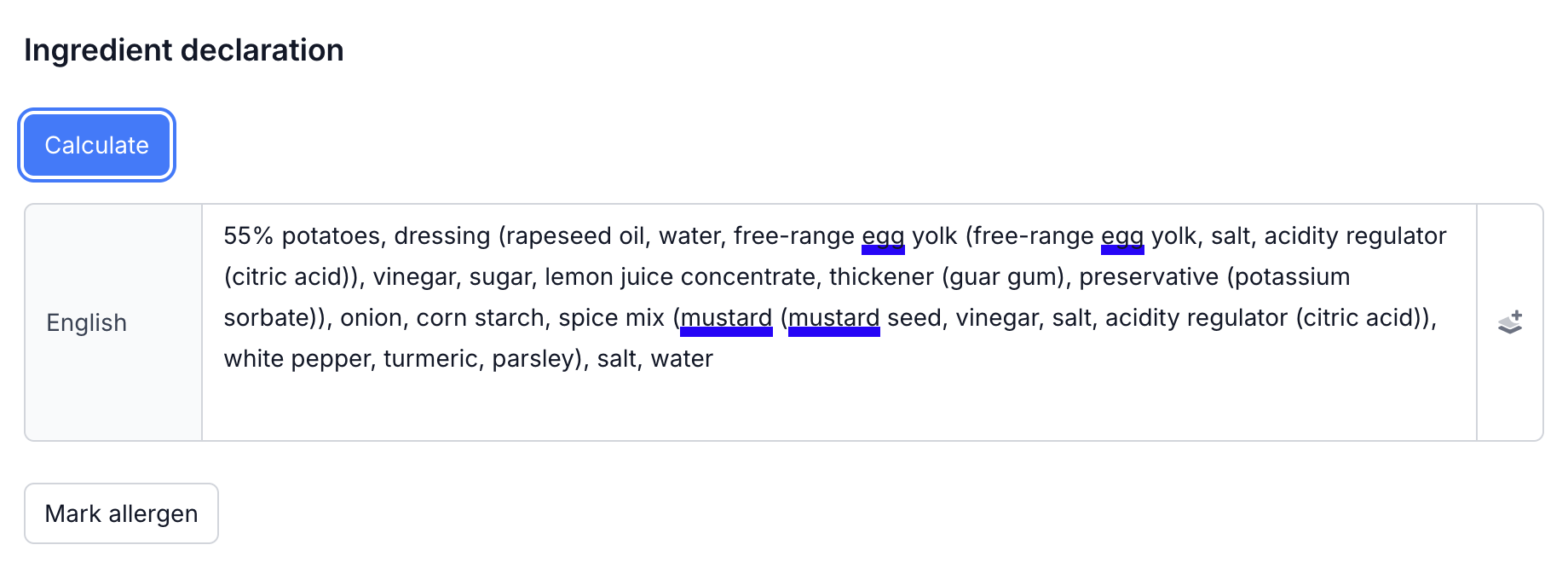
Tip: changed the bill of materials? Click Calculate again to update the ingredient declaration. Manual adjustments to the tree structure are preserved.
Next step
Declaration ready? Then you can generate your first product specification.