Creating and managing ingredients
Before you can build a recipe, you first create the ingredients. Each ingredient is a complete raw material card — from nutritional values and allergens to supplier, origin, shelf life, microbiology and certifications. Everything you need for the recipe is captured here.
Create an ingredient
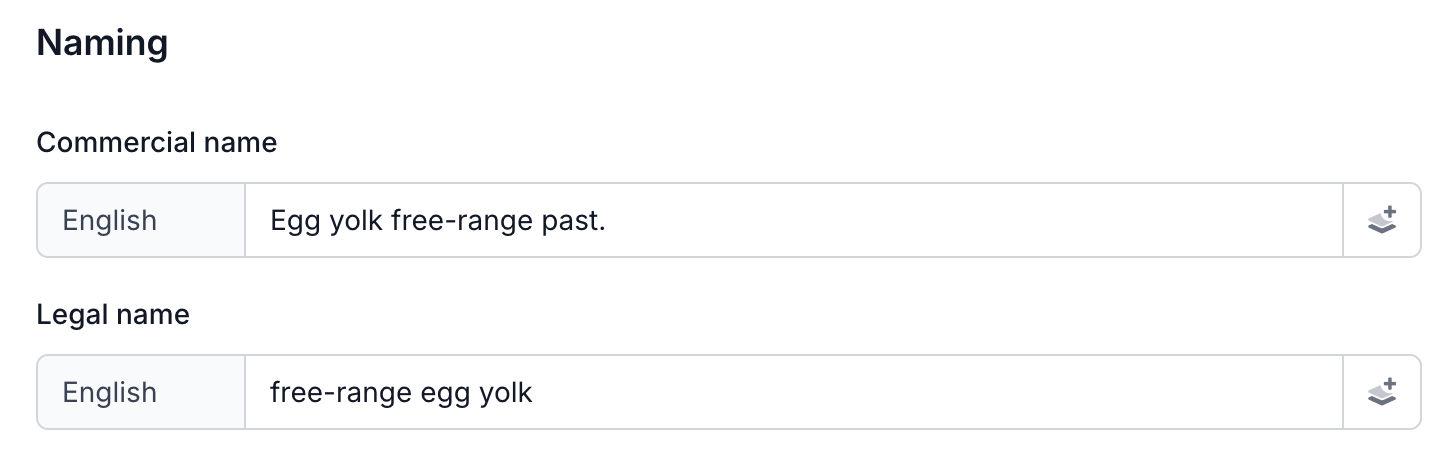
Go to the Ingredients tab and click Add. Enter the product name (the name as your supplier calls it) and the legal name (the name for the label). Add an article code so you can quickly find the ingredient later.
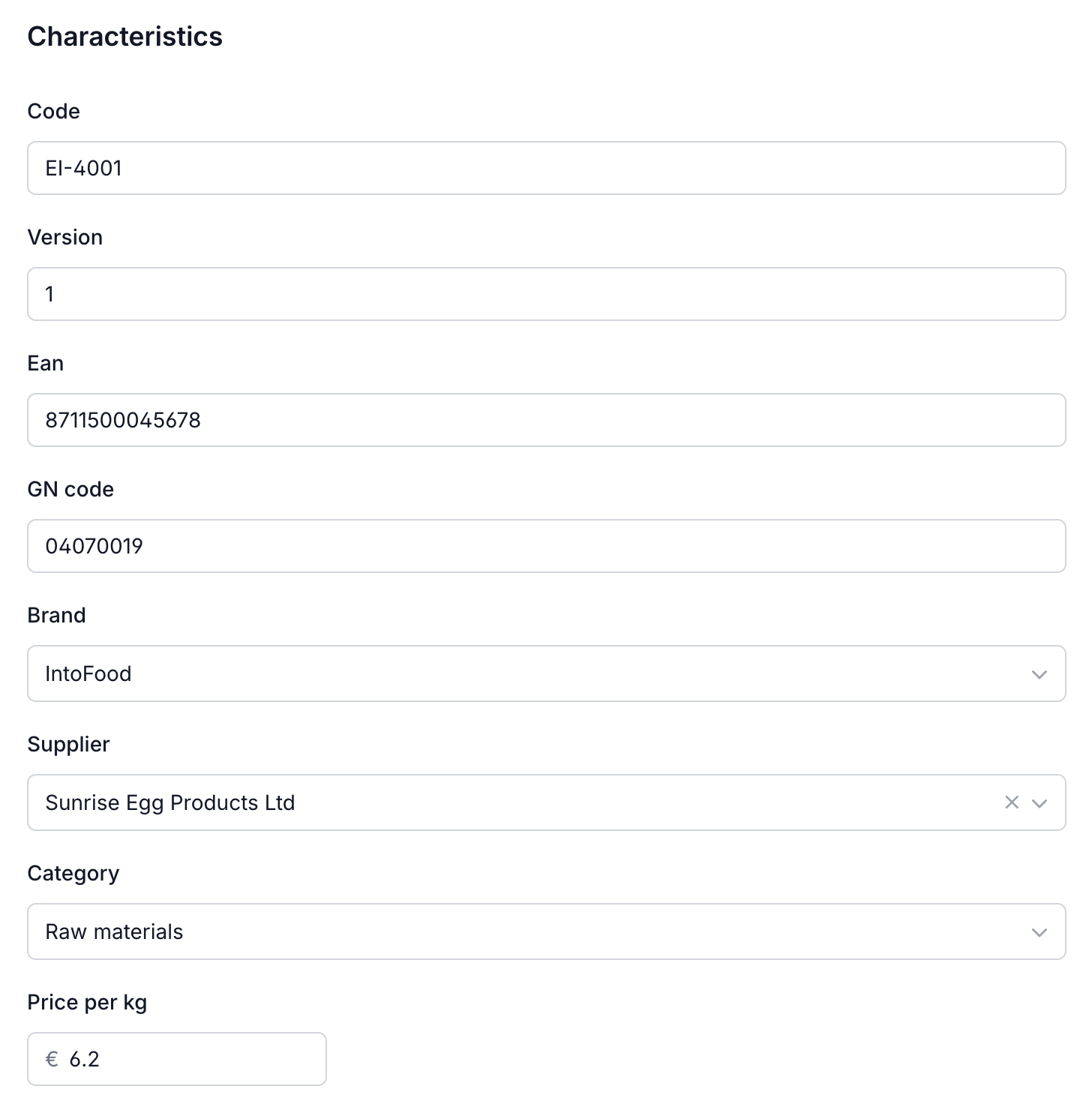
The attributes tab is also where you record the supplier, brand, category, EAN code, GN code and price per kilo.
Enter nutritional values
Go to the Nutritional values tab and enter the values from the supplier specification. Eclarion uses these values later to automatically calculate the nutritional values of your end product.
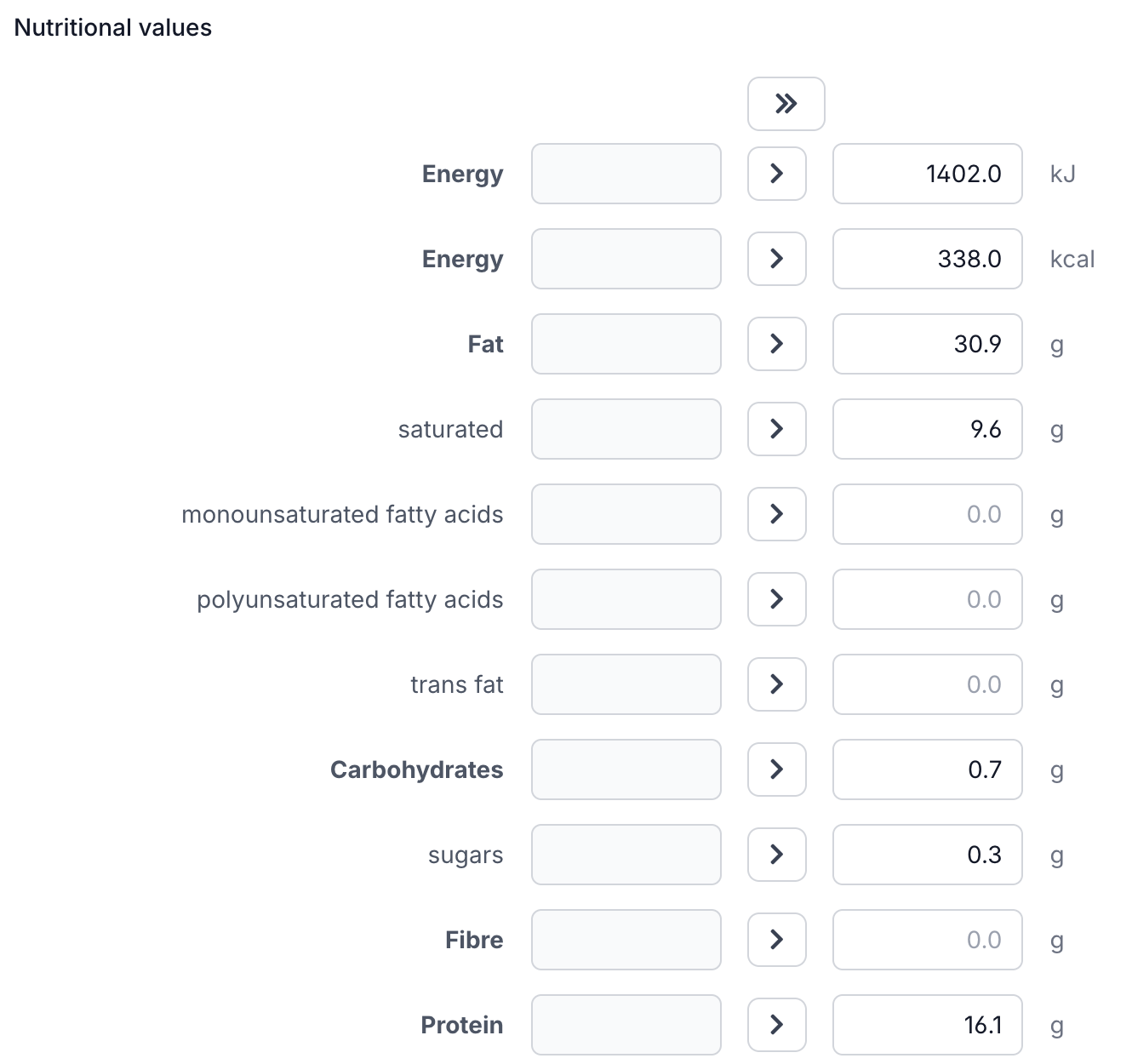
Tip: enter nutritional values per 100 grams — that's the standard Eclarion uses for the calculation.
Set allergens
Go to the Allergens tab and set the status per allergen: Free from, May contain, or Contains. More about allergens and cross-contamination data? Read Entering allergens.
Other data
Beyond nutritional values and allergens, ingredients are primarily used to capture supplier data:
- Statements — supplier certifications such as organic, halal, kosher or GMO-free
- Documents — the purchase specification, certificates of analysis (CoA) and other supplier documents as PDF
There are also tabs for shelf life, microbiology, physiochemical properties, organoleptic properties, packaging and images. For ingredients you only fill these when your supplier provides the data — they are more commonly used on the end product (your recipe).
Compound ingredients
An ingredient can itself be a recipe — think of a dressing, spice mix or pasteurised egg yolk. Add a bill of materials to the ingredient and Eclarion automatically calculates the nutritional values and allergens through.
Next step
Ingredients created? Then you can build your first recipe.